How to - Self Register!
Registration
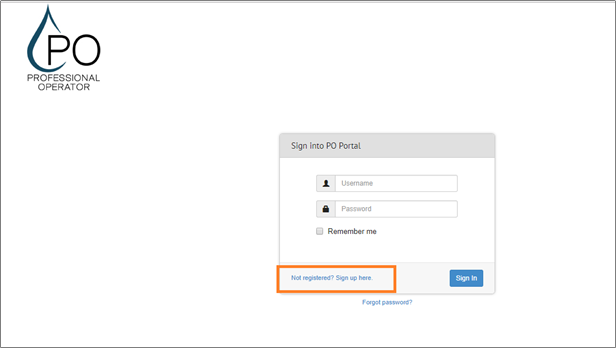
Users who have not previously registered for the Professional Operator program must select “Not Registered? Sign Up here” to access the Registration page as shown below:
Login Info Tab
The Self Registration Wizard will open with Login Info tab by default as shown below:
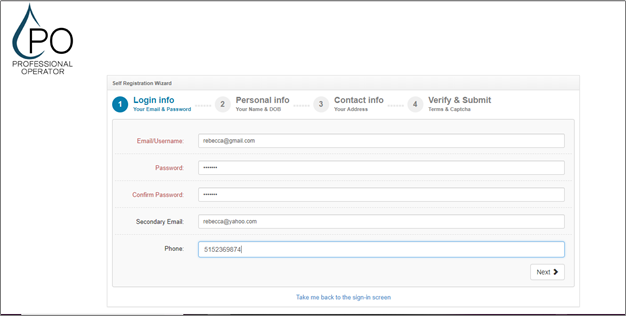
Users will be asked to enter the following information (all items in red are mandatory):
- Email/Username – Enter your valid email address or a name whichever you prefer to use while logging in.
- Password – Enter a password. (Passwords are case sensitive).
- Confirm Password - As a security check, retype the password.
- Secondary Email - Enter an alternate e-mail address. (E-mail addresses are not case sensitive).
- Phone - Enter the telephone number.
- Click Next to go to Personal Info tab.
- Click Take me back to the Sign-in screen to go back to the sign in screen.
Personal Info Tab
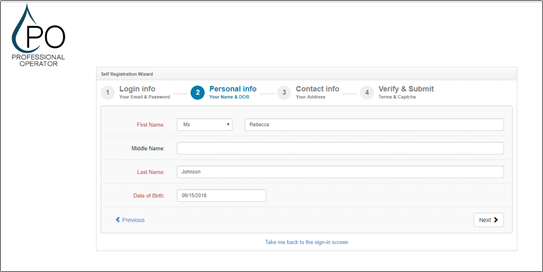
Users will be asked to enter the following information (all items in red are mandatory):
- First Name – Select the title from the dropdown menu and enter first name.
- Middle Name - Enter the middle name.
- Last Name – Enter the last name;
- Date of Birth – Select the date from the date picker.
- NOTE: The user’s age should be between 14 and 100 years.
- Click the Previous button to go back to the Login Info tab.
- Click the Next button to go to the Contact Info tab.
- Click Take me back to the Sign-in screen to go back to the sign in screen.
Contact Info Tab
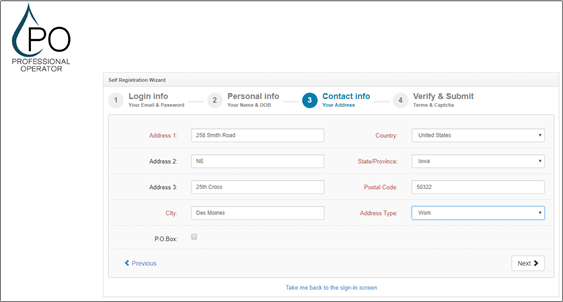
User will be asked to enter the following information (all items in red are mandatory):
- Address 1 – Enter the address.
- Address 2 - If additional space is needed, continue to enter the address in this space.
- Address 3 - If additional space is needed, continue to enter the address in this space.
- City – Enter the City.
- Country – Select the Country from the dropdown menu.
- State/Province – Select the State/Province from the dropdown menu.
- NOTE: The state/province list will be displayed according to the Country selected.
- Postal Code – Enter the postal code.
- Address Type – Select the type from the dropdown menu.
- Click the Previous button to go back to the Personal Info tab.
- Click the Next button to go to the Verify & Submit tab.
- Click Take me back to the Sign-in screen to go back to the sign in screen.
Verify and Submit Tab
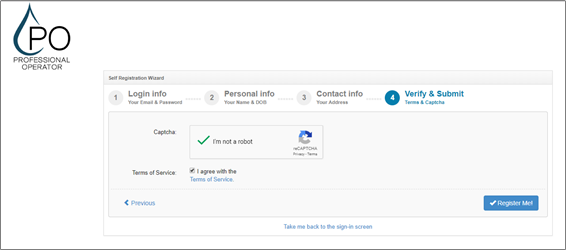
User will be asked to enter the following information (all items in red are mandatory):
- Captcha – Click the I’m not a robot checkbox.
- Terms of Service – click the check box.
- Click the Previous button to go back to the Contact Info tab.
- Click the Register Me button to complete the registration process.
- Click Take me back to the Sign-in screen to go back to the sign in screen.
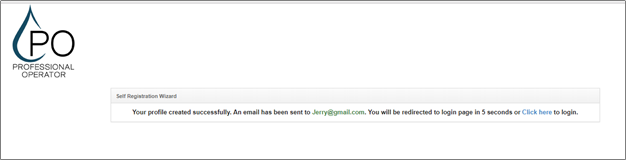
The system will display a confirmation message on profile creation as shown below: